Monday, July 23, 2018

Fransiskus Sutris

MYSQL CRUD Using Custom Function In VB.Net

In this article I will share my way to Mysql CRUD using vb.net by creating custom functions. Why custom function, because this function I created itself to simplify and shorten the program to CRUD data from the database by calling the function. So we no longer need to type the insert, update and delete commands in the sql query.

Step 1: Create Function For Connect To Database

  • Open Visual Basic .Net
  • Create New Project
  • Add New Module (Right click on Project Name at Solution Explorer - Add - Module)
  • Let its name Module1.vb
  • Add to Reference : MySql.Data.Dll

Type codes below to Module1:


Step 2: Next - Create Function For Insert, Update And Delete Data
Read More

Tuesday, July 17, 2018

Fransiskus Sutris

General Error, hubungi Call Center Efaktur

Terjadi General Error saat menjalankan Efaktur Client


Saya akan berbagi bagaimana menjalankan Efaktur versi 2.1 pada sisi client jika terjadi error "General Error, hubungi Call Center Efaktur". Seperti terlihat pada gambar di bawah ini.

Atau bisa tonton tutorial videonya berikut ini :


Perlu diingat bahwa error ini terjadi pada sisi client dan bukan pada sisi server! jadi yang perlu kita lakukan adalah pada folder efaktur di komputer client.

Catatan : Terjadinya kegagalan/kehilangan data efaktur tidak menjadi tanggung jawab saya.

Langkah-langkahnya adalah sebagai berikut:
  • Lihat dan catat lokasi dari aplikasi efaktur di komputer client (ditempat saya lokasi nya saya taruh di D:\EFAKTUR V2.1\
  • Silahkan masuk ke direktory D:\EFAKTUR V2.1\
  • Silahkan Klik kanan di area yang kosong, lalu pilih New  > Text Document
  • Silahkan berinama file nya menjadi Efaktur.txt
BACA JUGA :
  • Silahkan buka file Efaktur.txt, lalu masukan perintah dos berikut:


  • Ingat! Lokasi D:\EFAKTUR V2.1\db" sesuaikan dengan lokasi dimana anda meletakan aplikasi efaktur.
  • Lalu silahkan simpan filenya dengan menekan CTRL + S
  • Silahkan keluar dari notepad
  • Lalu Rename File Efaktur.txt menjadi Efaktur.bat


  • Sekarang untuk menjalankan efaktur di komputer client anda cukup mengakses file Efaktur.bat tersebut.


Demikian sharing saya ini semoga bermanfaat bagi anda yang memerlukannya.


Read More

Thursday, July 12, 2018

Fransiskus Sutris

Jinitiator Not Working on Windows 7

Make sure the msvcr71.dll file is in the directory c:\windows\system32\

if the file does not exist then you can take it from another computer that has windows 7 operating system as well.
After that try your run again jinitiatornya.

Good luck.
Read More
Fransiskus Sutris

Jinitiator Not Working on Windows 7

Error when executing oracle jvm or jinitiator in windows 7.

Pastikan file msvcr71.dll ada di dalam folder c:\windows\system32\

jika file tersebut tidak ada maka anda bisa dari komputer lain yang memiliki sistem operasi windows 7 juga.

Setelah itu coba anda jalankan lagi jinitiatornya.

Semoga berhasil.
Read More

Wednesday, June 27, 2018

Fransiskus Sutris

Pengatur Kecerahan/Brightness Layar Laptop tidak Berfungsi

Beberapa hari yang lalu sempat mengalami brightness/pengaturan kecerahan layar laptop saya tidak berfungsi. layar laptop saya terlihat sangat cerah sehingga tidak tahan memandangnya berlama-lama. Ini terjadi pada sistem operasi windows 10 yang saya install di laptop. padahal dahulu ketika menggunakan windows 7 tidak ada masalah demikian.

Setelah mencari-cari solusi di google, berbagai cara sudah saya tempuh namun tidak membuahkan hasil.

Ahirnya saya coba-coba untuk mengupdate windows 10 saya. Dan ketika selesai update, lalu setelah restart maka masalah pengaturan brightness kembali berfungsi dengan baik.

Jadi solusi yang saya temukan adalah dengan mengupdate windows 10 saya.

Berikut Ini cara mengupdate windows 10:

  • Start > PC Settings


  • Update & Security


  • Check for updates
  • Tunggu Hingga proses update selesai dan berhasil
  • Lalu restart laptop anda
  • SEMOGA BERHASIL


Read More

Friday, May 18, 2018

Fransiskus Sutris

limiting certain Flashdisk that can be accessed by computer

One of the many causes of the entry of the virus to our computer is because it connects the flash to our computer, which the flash is infected with the virus. Computer viruses can infect in various ways and one of them is through a flash. Flashdisk that has been infected with a virus that has autorun ability, will usually be easy to infect the computer when the flash is connected to our computer.
Well, one way you can do to prevent the spread of this virus is to limit and prevent other people can not enter the flash to our computer in vain. If necessary only our flash that can enter the computer.

The download link is below this post.

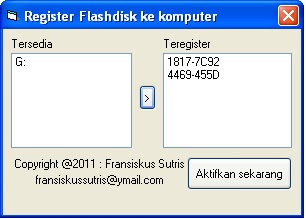
How to order certain flash that may be plugged / accessed by our computer ?? Namely with the help of UFD Register application. This application you can use to register / allow certain flash (example: just your flash only) that can be opened on your computer. This application can register more than one flash, so if you have some flash is not a problem.

Steps to register the flash with this application:


  1. Run the Register UFD app
  2. Select the flash you want to register and press the [>] button to register the flash (right click on the left panel of the application and click Refresh if the flash has not appeared)
  3. Do step two if you want to register another flash
  4. A registered flash will appear in the right pane (Teregister)
  5. When finished registering, click the Activate Now button to activate the application
  6. Last is click Hide program


Please try to insert other flash (other than that already diregisterkan earlier), will emerge message that flash can not access computer and you can not access the flash in windows explorer.


Read More
Fransiskus Sutris

HOW TO PREVENT THREAT AND DISTRIBUTION OF VIRUS FROM FLAHSDISK

According to the explanation of the article on ilmupengetahuan.org, the emergence of the first computer is also the birth of the development of computer viruses. One of the computer makers and created EDVAC (Electronic Discrete Variable Automatic Computer) named John von Newma
n circa 1949, describes in his paper discussing the possibility of a program that can spread automatically.


So it can be concluded that the virus itself has been deliberately created since the first time there is a computer, it is no wonder that until now still popping up various kinds of viruses. Virus WANNA CRY if not mistaken lately that makes a scene.

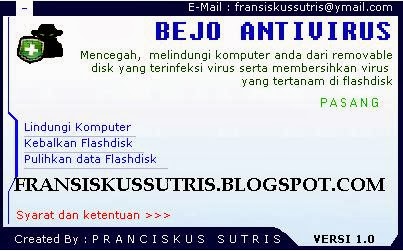
USB Flashdisk is one of the media that used the virus to reproduce itself and spread it to another computer. And finally to Antivirus Bejo. In version 1.0 this is still fairly simple. Although simple at least by installing this antivirus your computer / notebook you are safe from the spread of the virus via flash. It is advisable not to put the .exe file (application with .exe extension) in your flasdisk root, as it will delete * .exe, * .lnk, and autorun.inf files commonly used by viruses for their deployment to other computers. To start using this antivirus please download via the link below: - Run the downloaded file - Shortly after running this antivirus will automatically be hidden in the system tray


- Please Open by clicking Antivirus Bejo that appears in the system tray - Then after the antivirus display appears to the screen, please click the install menu. - Automatically the antivirus will be installed on the computer system - Click also Protect Computer menu Good luck. Please download below


DOWNLOAD

thanks. Regards

Read More