Wednesday, April 21, 2021

Fransiskus Sutris

Cara Download dan Install Microsoft Office 2019

Microsoft telah mengubah cara mendownload Office 2019 untuk pelanggan volume lisensi, termasuk Visio dan Project. Tidak seperti edisi produk Microsfot Office sebelumnya. Produk Office 2019 tidak dapat diunduh langsung melalui Volume Licensing Service Center (VLSC)

Untuk melakukan download office 2019 pastikan anda sudah mendapatkan Serial Number/Product Key Office 2019 yang anda beli.

  • Download the Office Deployment Tool (ODT)

Buatlah folder baru dengan nama "OfficeSetup" di direktory C:\

Kemudian unduh ODT dengan klik di sini
Ketika unduhan selesai, buka, centang kotak untuk menerima persyaratan lisensi Microsoft, dan klik Continue.
Anda akan diminta untuk memilih folder untuk menyimpan file setup yang akan diekstrak. Arahkan ke folder (C :\OfficeSetup) yang dibuat sebelumnya. Perlu diperhatikan bahwa instruksi ini tidak akan berhasil jika Anda memilih nama atau lokasi folder yang berbeda dari ketentuan di atas.

Setelah selesai, folder "OfficeSetup" yang baru akan berisi file bernama "setup" dan beberapa contoh file "konfigurasi". Hapus file konfigurasi. Anda hanya perlu menyimpan file setup saja.
  • Download and Siapkan File Konfiguration

Unduh file konfigurasi yang Anda perlukan dari daftar di bawah ini dengan mengklik kanan link untuk file yang Anda perlukan, memilih Save AS…, dan simpan file ke folder "OfficeSetup" yang Anda buat tadi.
Jangan mengunduh lebih dari satu file ini ke folder itu dalam satu waktu. Jika Anda ingin menginstal lebih dari satu jenis produk Office 2019, Maka Anda mesti melakukannya setelah download office yang ini selesai dan dipindahkan ke folder lain.

Office Standard 2019 (32-bit)DOWNLOAD
Office Standard 2019 (64-bit)DOWNLOAD
Office Professional Plus 2019 (32-bit)DOWNLOAD
Office Professional PLus 2019 (64-bit)DOWNLOAD
Project 2019 (32-bit)DOWNLOAD
Project 2019 (64-bit)DOWNLOAD
Project Professional 2019 (32-bit)DOWNLOAD
Project Professional 2019 (64-bit)DOWNLOAD
Visio Standard 2019 (32-bit)DOWNLOAD
Visio Standard 2019 (64-bit)DOWNLOAD
Visio Pro 2019 (32-bit)DOWNLOAD
Visio Pro 2019 (64-bit)DOWNLOAD
Access 2019 (32-bit)DOWNLOAD
Access 2019 (64-bit)DOWNLOAD
Outlook 2019 (32-bit)DOWNLOAD
Outlook 2019 (64-bit)DOWNLOAD
Powerpoint 2019 (32-bit)DOWNLOAD
Powerpoint 2019 (64-bit)DOWNLOAD

Silahkan buka file configurasinya lalu replace string "#####-#####-#####-#####-#####" dengan product key yang telah anda dapatkan.

Simpan filenya. Lalu rename menjadi nama file "configuration.xml", jika nama file yang anda download tadi tidak kelihatan ektensi ".xml" nya, maka anda cukup rename filenya menjadi "configuration" saja tanpa ".xml"
  • Download dan Install Office

Bukalan command prompt dan masuk ke direktory C:\OfficeSetup\

- Ketik perintah : setup /download configuration.xml
- Lalu tekan enter (Proses download akan berjalan di background)
- Jika download telah selesai akan ditandai dengan Layar command prompt akan kembali ke command prompt C:\OfficeSetup>_

Langkah terakhir adalah menginstall Office 2019.
- Ketik perintah : setup /configure configuration.xml
- Tunggu hingga proses install selesai (ditandai dengan layar cmd akan kembali ke  command prompt C:\OfficeSetup>_

Good Luck
Read More

Wednesday, December 23, 2020

Fransiskus Sutris

Bejo Payroll

Bejo Payroll

Developed by Pranciskus Sutris | Phone (0821) 86 234 034· fransiskussutris@gmail.com |

Free payroll software/Aplikasi penggajian gratis


Bejo Payroll is a software that can help you manage employee salary data. In this application you can print pay slips and payroll reports.

Why Choose Bejo Payroll?

  • With BEJO PAYROLL you can design your own payroll columns, calculation formulas, and others.
  • You can create unlimited company databases.

Setting Payroll Items

Print Salary Slip

Setting your own slip template

Bejo Payroll memerlukan Netframework 4.5, jika dikomputer belum terinstall Netrame anda bisa download dan install Netframe terlebih dahulu.

username dan password aplikasi default : admin

Read More

Tuesday, June 25, 2019

Fransiskus Sutris

CARA MEMATIKAN KOMPUTER LEWAT COMMAND PROMPT

Untuk mematikan/shutdown komputer lewat command prompt berikut ini perintahnya.

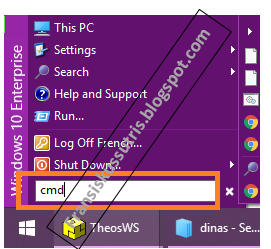
  • Buka command prompt dari menu Start
  • Ketik cmd
  • Lalu Enter
  • Ketikan perintah shutdown -s - f -t 00 pada layar command prompt yang tampil
  • Lalu tekan Enter maka komputer akan melakukan shutting down.
Untuk merestart komputer tinggal mengganti parameter -s menjadi -r
Untuk mematikan/merestart dalam bebeberapa waktu setelah perintah ditekan enter ubah saja parameter 00 menjadi jumlah detik yang dikehendaki.

Read More

Monday, June 24, 2019

Fransiskus Sutris

Microsoft Office Outlook Has Stopped Working


Ketika Microsoft Outlook anda tidak bisa dijalankan dan muncul error "Microsoft Office Outlook Has Stopped Working", maka cara untuk memperbaikinya sangat mudah yaitu dengan cara repair Microsoft Office anda.


Langkah-langkahnya adalah sebagai berikut :
  • Buka Control Panel >>
  • Buka Add or Remove Programs / Programs And Features
  • Klik pada Microsoft Office 2010 (Versi tergantung dari Ms Office yang anda pakai, maka disesuaikan saja)
  • Lalu Pilih menu Change
  • Ikut prosesnya dan pilih Repair dan klik continue
  • Silahkan diikuti prosesnya sampai selesai
  • Lalu restart komputer anda.
Demikianlah cara memperbaikin Microsof Office yang tidak bisa dibuka dengan error tersebut di atas.

semoga bermanfaat.

Read More

Thursday, June 13, 2019

Fransiskus Sutris

How To Display XML File in Combobox Using VB.net

How To Display XML File in Combobox Using VB.net

What is xml?

XML is a software- and hardware-independent tool for storing and transporting data.

What is XML?

  • XML stands for eXtensible Markup Language
  • XML is a markup language much like HTML
  • XML was designed to store and transport data
  • XML was designed to be self-descriptive
  • XML is a W3C Recommendation
want to read more about xml ? Go Here>>
Source : https://www.w3schools.com/xml/xml_whatis.asp
Now i want focus on how to display data from XML file in combobox.

  • Open your text editor (like sublimeText or notepad)
Type the following xml content, then save with file name : category.xml
On my computer i save category.xml on the following place >> D:\category.xml

  • Open your Vb.net
On form1 design put one ComboBox, name it ComboBox1, see picture below:

  • Double click on form area and then type the following code in Form1_Load:
  • Run the project and look at the combobox, it will be filled with category data from the category.xml file

Thank you, hopefully useful.

#Loading xml value into combobox
Read More

Thursday, May 30, 2019

Fransiskus Sutris

Easy Way To Encrypt Files Without Software

Easy Way To Encrypt Files Without Software

Encryption is the process of securing an information by making the information cannot be read without the help of special knowledge.
Because the title is a layman method, I will show you how to encrypt our file files in a simple and simple way.
Here we will use the file extension.
I told you that by default the file extension is not visible.


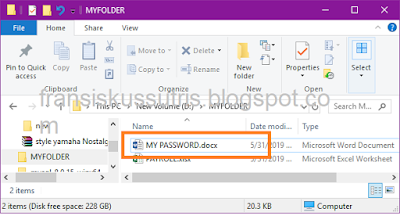
Let's try now, we will encrypt the MY PASSWOD.DOCX file, see the picture below

The target file that we will encrypt is MY PASSWORD.DOCX
  • Right-click on the MY PASSWORD.DOCX file,
  • Select Add to archive ...
  • Please change the name of the archive file, for example the compressed file becomes MY PASSWORD ENKRIP.RAR
  • The first step is complete, compressing MY PASSWORD.DOCX file, the encrypted file appears as below
The second step is that we rename the compressed file to an extension .docx.
  • Right-click MY PASSWORD ENKRIP.RAR
  • Pilgrimage Rename
  • Change the .rar extension to .docx
  • Just Click YES if questions arise
  • The encryption process is complete and the file we compressed will change again to the icon of Microsoft Word. see the picture below (it appears MY PASSWORD ENKRIP.DOCX file with Microsoft Word default icon).
  • Now your file is safe, because other people think that the file is a word file, and when we open it will definitely open the Microsoft Word application. But the file will not open and is considered corrupt.

Then how to open it? Yes, you just have to rename it again to .rar then extract it again to become the original file.

That is an encryption trick from me, hopefully it's useful for you. but if it's not useful, please forgive.
Read More
Fransiskus Sutris

CARA MUDAH DAN AWAM ENKRIPSI FILE TANPA SOFTWARE

Enkripsi adalah proses mengamankan suatu informasi/file dengan membuat informasi tersebut tidak dapat dibaca tanpa bantuan pengetahuan khusus.

Karena judulnya adalah cara awam maka saya akan tunjukan cara mengenkripsi file file kita secara awam dan sederhana, walaupun sederhana tetapi trik ini sangat bermanfaat bagi kita untuk menyimpan file-file yang sangat rahasia, kita sendiri yang tahu cara membukanya.

Trik enkripsi ini akan memanfaatkan ekstensi file. contohnya misalkan kita punya file microsoft word versi 2007 keatas maka ekstensinya adalah filename.docx. docx itulah yang disebut sebagai ekstensi file. Saya beri tahu bahwa secara default ekstensi file tidak terlihat. (CARA MENAMPILKAN EKSTENSI FILE).

Mari kita coba sekarang, kita akan mengenkripsi file MY PASSWOD.DOCX, lihat gambar di bawah ini.
Target File yang akan kita enkripsi adalah MY PASSWORD.DOCX

  • Klik kanan pada file MY PASSWORD.DOCX
  • Pilih Add to archive...
  • Silahkan ubah nama file archivenya, disini saya contohkan file compressnya menjadi MY PASSWORD ENKRIP.RAR
  • Langkah pertama sudah selesai yaitu compress file MY PASSWORD.DOCX, file yang sudah terenkrip sudah muncul seperti di bawah ini
  • Langkah kedua adalah kita rename file yang sudah dicompress tersebut menjadi berekstensi .docx. 
  • Klik kanan MY PASSWORD ENKRIP.RAR
  • Pilil Rename
  • Ubah ekstensi .rar menjadi .docx
  • Klik YES saja jika ada pertanyaan muncul
  • Proses enkripsi sudah selesai dan file yang kita kompress tadi akan berubah lagi menjadi icon microsoft word. lihat gambar dibawah ini (tampak file MY PASSWORD ENKRIP.DOCX dengan icon default microsoft word).
  • Sekarang file anda sudah aman, karena orang lain menyangka bahwa file itu adalah file word, dan ketika kita buka pasti akan langsung membuka aplikasi microsoft word. Namun file tidak akan bisa terbuka dan dianggap corrupt file.
Lalu cara membukanya bagaimana? Ya tinggal anda rename lagi menjadi .rar lalu di ekstrak lagi menjadi file aslinya.

Demikian trik dari saya ini, semoga bermanfaat, jika kurang atau tidak bermanfaat mohon dimaafkan.
sekian terimakasih.


Read More